

3mf Export Plugin
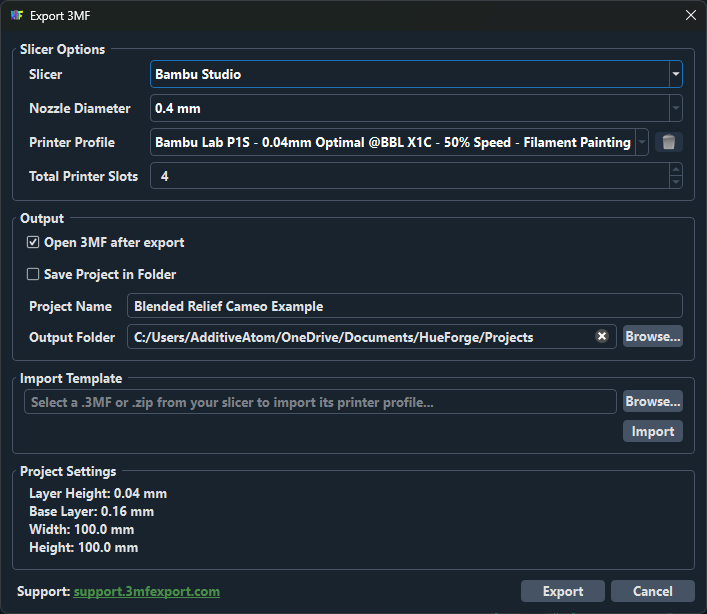
I know you are here for the 0.9.4 Release Notes, but let me take a moment first to introduce the first ever 3rd Party HueForge Plugin. The 3MF Export Plugin!
This has been a widely requested feature, but it’s a HUGE task given how different every slicer is in how it implements and uses the 3MF format. Additive Atom took on the task of working with all the slicers and figuring out their formats to make it easy to export HueForge projects as 3mf files instead of STLs. It can’t solve EVERY possible output need, but it’s a huge step forward in ease-of-use.
In case you are wondering why this isn’t built into HueForge - Slicers all have their own variations of the 3MF format. It isn’t a “standard” so much as a “packaging format with a couple of rules” but anything that falls outside the scope of those rules is fair game. Vendors can and do handle things differently and they regularly change their formats. This is too much for a one man dev shop to handle along with primary HueForge development. Which is why I’m super exited that Adam took on the challenge.
UPDATE: Two fixes in the past 24 hours. First, borders now work in v1.0.1 and v1.0.2 added Anycubic Slicer support.
Release Note for HueForge v0.9.4
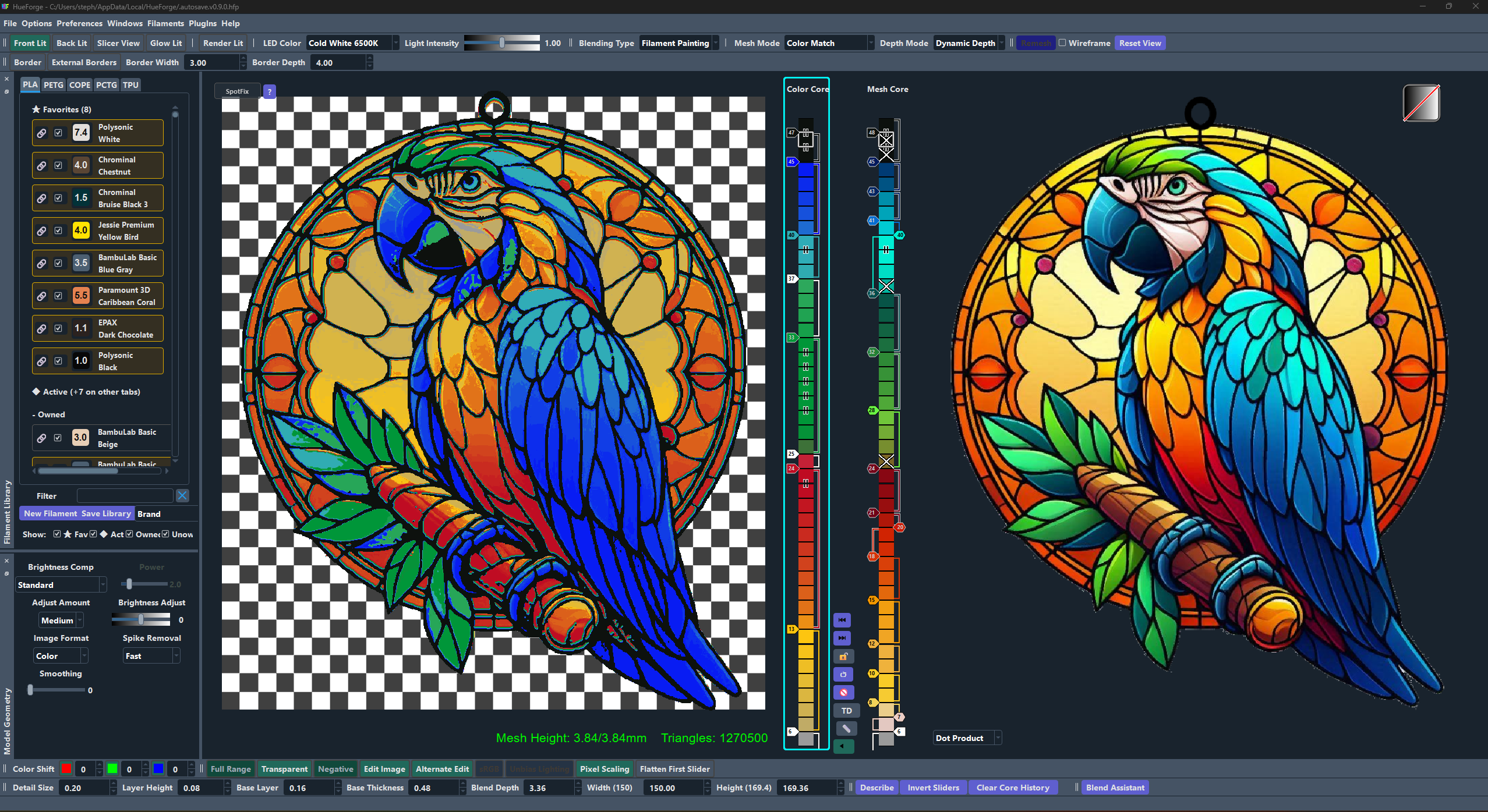
New Rendering Engine
HueForge now uses a modern hardware-accelerated rendering pipeline:
Direct3D 11 on Windows (default)
Metal on macOS (default)
Vulkan available as an option on Windows and Linux - you will need your own libvulkan.so.1 on Linux. The VulkanRT Installer is included in the Windows installer.
This resolves long-standing crashes on AMD multi-monitor setups, improves compatibility across Intel, AMD, and NVIDIA GPUs, and allows HueForge to recover automatically from GPU driver resets instead of crashing.
The render backend will startup in it’s default modes (so Metal on MacOS and D3D11 on Windows) and can be changed in Settings. A restart is required.
UPDATE: Some users with high refresh rate monitors and G-Sync have seen stuttering menus. Turning off G-Sync in the NVIDIA Control Panel for HueForge specifically seems to solve the issue. (Manage 3D Settings → Program Settings → add HueForge → set Monitor Technology to “Fixed Refresh”)
This change alone would make this a worthwhile release. But it wasn’t enough for me.
Community Filament Libraries
You can now subscribe to community-maintained filament libraries alongside the official vendor libraries. This is a big deal and should make sharing curated filament lists much easier. Finally letting the Community Libraries shine.
Want to create a Community Library? Go to https://github.com/thehueforge/hueforge-community-library-example and fork the repository then follow the Readme instructions. If you set it up correctly, simply updating the library json files and committing them to the repo will update the manifest for you automatically.
Community sources can be added and managed from:
Filaments -> Manage Community Sources
When a community filament conflicts with a vendor library entry, the new Community Library Settings let you choose which source takes priority.
Community filaments now appear with a badge showing their source.
Filament Library Auto-Updates
HueForge can now check for updated vendor or community filament libraries and download them in the background.
You can check manually from:
Filaments -> Check for Library Updates
HueForge can also check automatically on startup.
Individual library entries can be suppressed if you do not want them updated.
Fixed the Palette in STL Export
The printable palette (Options→Attach Palette is again correctly appended to exported STL files.
Palette configuration is also saved and restored with Named Defaults configs.
SpotFix
SpotFix received several workflow improvements:
Each SpotFix now shows a collapsible list of its constituent sub-regions
Sub-regions can be removed easily by deleting it from the list.
Hovering over a sub-region highlights it live on the 3D mesh
Individual SpotFixes can be enabled or disabled
All On and All Off buttons manage the full list at once
A Recalculate button forces fresh region detection without rebuilding the full mesh
Clicking any pixel in the 2D view while in SpotFix mode jumps directly to that layer
The tolerance setting is now remembered when switching modes
Edit Image Brightness
In Edit Image mode, if you deselect Alternate Edit, the Bright Adjustments now uses perceptual CIE Lab lightness making it more useful and closer to the Mesh based adjustments when Edit Image is off.
This gives more natural highlight and shadow adjustments without blowing out bright areas or crushing dark areas.
Color Matching
Fixed incorrect color matching results for:
Achromatic colors
Whites
Grays
Blacks
Very dark colors
Removed some “Dead” code in the shaders that was causing issues on Intel GPUs, but also turned out not to be fully dead and was degrading image quality. Images should be sharper now.
Color matching is also significantly faster, especially on low end GPU hardware. This resolved GPU timeouts that could crash the preview.
TD1 Connectivity
TD1 handling has been improved:
Better detection and handling of multiple HueForge instances with a TD1 plugged in. (Only one HueForge can connect)
TD1 reconnects automatically after a firmware reflash
A port with a permission error can now be retried without restarting HueForge
Multiple HueForge Instances
Running more than one HueForge window at a time no longer causes plugin conflicts.
Each instance now uses its own private copy of plugin files.
Compatibility Warnings
HueForge now detects and warns if third-party software is injecting code that can corrupt the 3D preview/crash the application.
This includes:
Nahimic
ASUS Sonic Studio
RivaTuner / RTSS
Settings
The Settings dialog has been reorganized into tabs:
Model
Project Tree
Exports
Updates & Network
Export Permission Check
HueForge now checks whether it can write to an export folder before attempting the export.
If the folder is not writable, HueForge blocks the export and shows a clear error instead of silently failing or partially writing files. It also doesn’t close the dialog so you can fix it and retry without having to relaunch the dialog in question.
This applies to:
Save as STL
3MF plugin - The first 3rd Party HueForge Plugin made by Additive Atom!
FlatForge
HugeForge
ColorDrop
Non-Modal Dialog
ColorDrop now stays open while you work.
You can make changes in HueForge and see ColorDrop update automatically without reopening the dialog after every adjustment.
Color View Modes
A new Color View dropdown lets you choose how the ColorDrop preview renders the model:
Slicer
Back Lit
Front Lit
Per-Piece Independent Blending
Each color nest in the 3D preview now blends independently.
This gives a more accurate representation of the final print.
Tight Cutout Per Nest
Tight Cutout can now be toggled individually per color nest instead of applying globally.
In normal cutout mode, the anchor color layer is used as the template for cutting out the hole. This is often correct, giving you outlines and letting larger areas of the base anchor be used. But sometimes it leaves gaps you don’t want. So the cutout instead is created by the remaining base layer. Perfect for stained glass made using Color Drop.
Auto-Sync
ColorDrop automatically refreshes when you change:
Filament stack
Blending settings
Model height
Camera Persistence
The ColorDrop 3D preview camera angle and position don’t reset every time you toggle an option making it easier to compare them.
Height Summary
After exporting, ColorDrop shows the original model height alongside the resulting print height.
Fixes
ColorDrop fixes in this release include:
Blank preview on export
Wrong border color in certain configurations
Tight Cutout showing incorrect geometry on first launch
Nests not re-detecting after a filament change
Auto-suggest not recovering after clearing a selection
Height estimates incorrect for star-pattern nests
Duplicate color piece names when the same filament appears more than once in the stack
Reduced lag on slider moves
Sliders no longer trigger a full mesh rebuild
HugeForge
HugeForge benefits from the FlatForge and core engine stability improvements in this cycle.
This includes:
New render engine
Export permission check
General tiling reliability fixes
FlatForge
FlatForge fixes in this release:
Fixed crash when exporting large models
Exporting very large prints, such as 250 x 250 mm at fine detail is more stable on low end systems.
Fixed 3D preview on older graphics
FlatForge viewer now renders correctly on OpenGL 3.3 hardware, including Intel integrated graphics