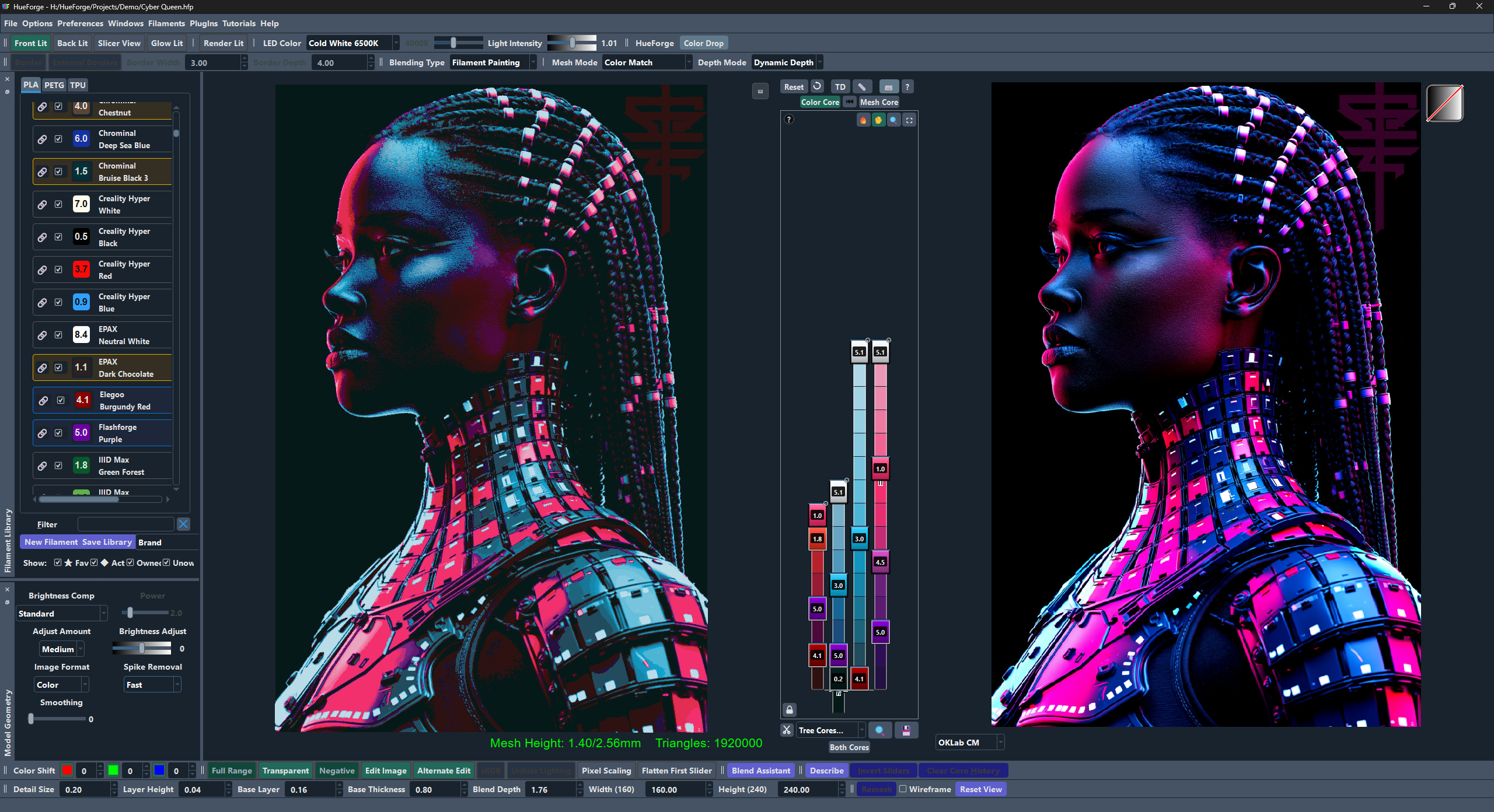
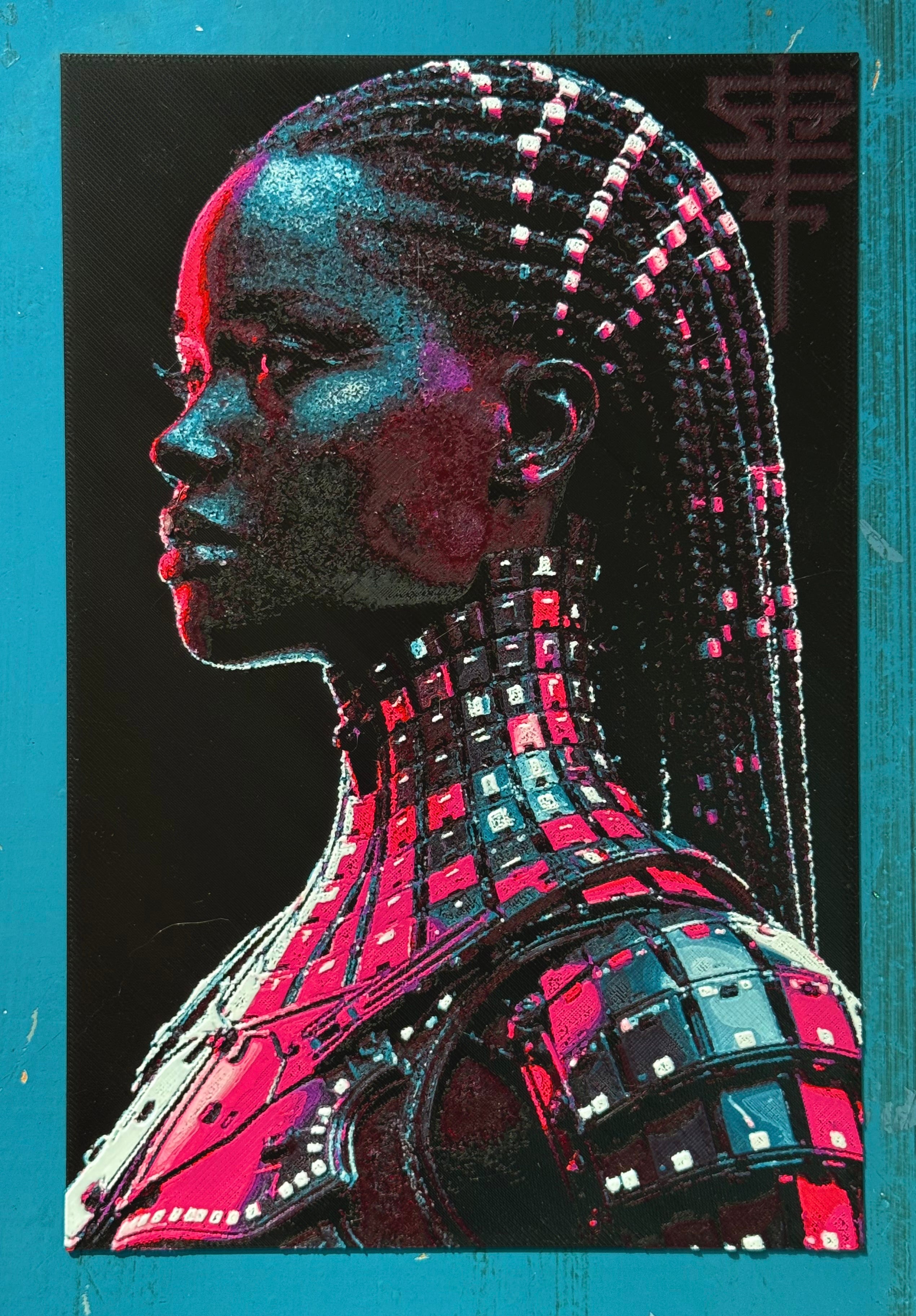
TLDR; Want to just see prints? Go ahead and scroll through, there are plenty to see. If what you see interests you, maybe read a little.
First we need to talk Plugins
HueForge Plugins have been a little controversial. It hasn’t been clear which functionality belongs in core HueForge and which goes in a plugin. While it isn’t always 100% cut-and-dry, I do have some hard and fast rules that I follow.
HueForge is Printer Agnostic
Every printer that can pause and swap can print a result from core HueForge - So never more than one color per layer.HueForge is Slicer Agnostic.
It never picks one slicer family over another.If it’s unrelated to the filament blending process, it’s likely going to be a plugin.
Those are the general rules I work by and it’s why ColorDrop is a plugin. It violates rule number 1. But if you have a printer with the capabilities necessary, it’s a fantastic upgrade to what HueForge can do.
What’s Changing in ColorDrop
I quickly realized that ColorDrop’s limitation of only merging the same filaments was an artificial restriction that created all kinds of bad behaviors in HueForge.
The most common was dropping a filament into the Color Core just to use it as a drop point, and not caring about what the Color Core prediction looked like in HueForge, only in the ColorDrop dialog. As a stopgap for this, I made the ColorDrop dialog non-modal (fancy UI talk for - it doesn’t take all the mouse and keyboard controls from the main application for itself when it is showing). Which meant you can adjust sliders on the main HueForge window while seeing it update in ColorDrop. But it’s cumbersome and honestly, even on my rather high-powered development desktop, could get really slow.
I’ve considered multiple solutions, starting with a relatively simple idea - a "Nesting Point” slider that doesn’t modify the blending at all. But this doesn’t solve the underlying issue which is the Preview pane is lying to you and only the ColorDrop preview is accurate. I’ve made multiple awful looking Previews that look great in ColorDrop and that’s against what HueForge is trying to do.
With the introduction of the Active Mode plugins like ColorSmith in my plugin toolkit (currently private plugins only) taking over HueForge’s main window to implement a better version of ColorDrop seemed like the right way to go. So I started implementing a system that allows users to arbitrarily branch their Color and Mesh Cores (always synchronized) and give an accurate real-time preview both in terms of color and mesh geometry. What does this mean? It means that different parts of the same HueForge model can follow different blending paths on the same layers. Here is a familiar example.
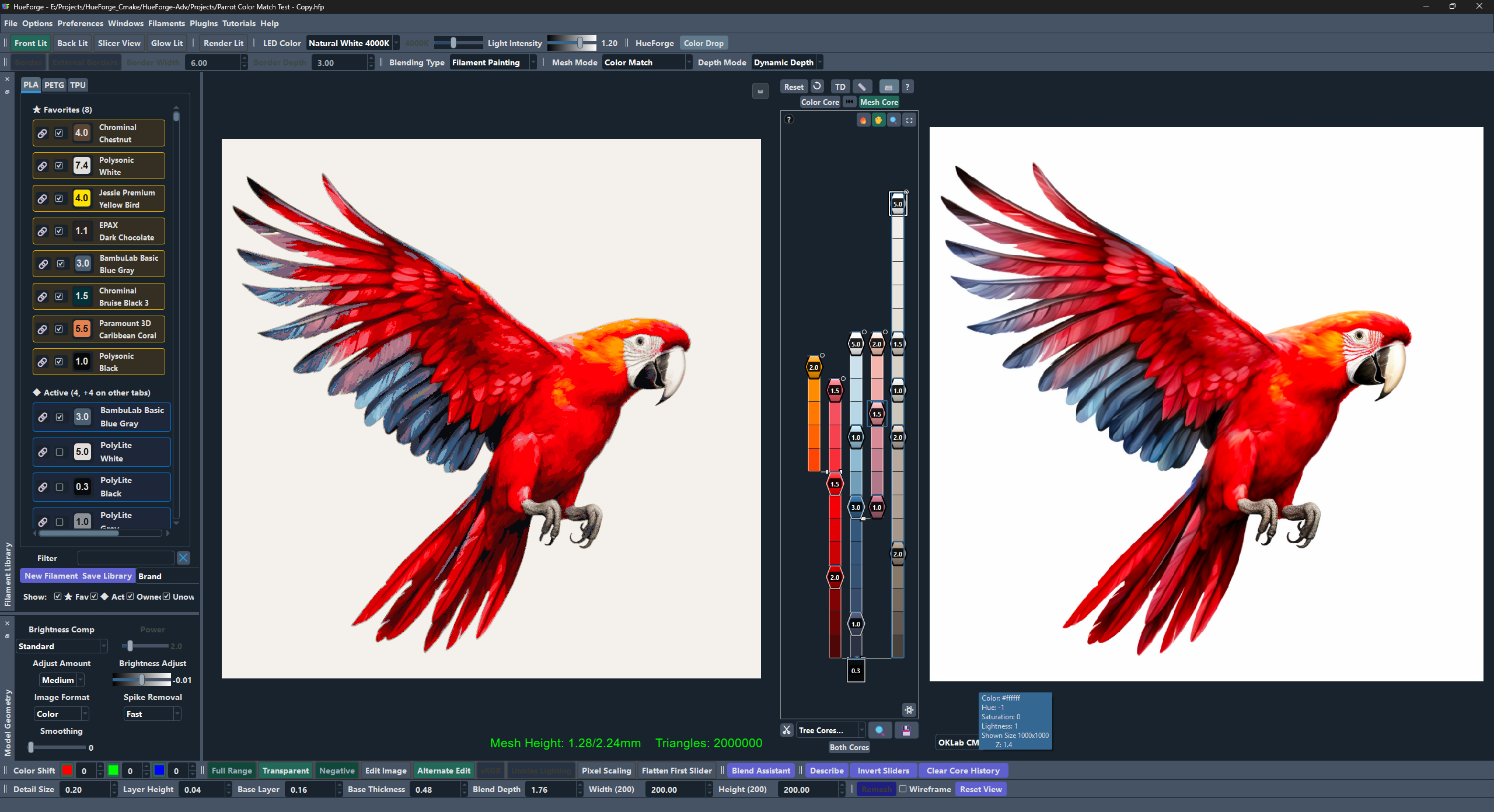
One of the coolest bits is this: In the past, you had to choose between the pink on the wings or the orange on the cheeks. Now you pick both. The orange and yellow is a branch off of the red where the pink continues on the parent red branch above where the yellow/orange branch splits off. You can see it on the left side of the tree in the image above.
So what are we seeing here? Most of the UI difference is here in the tree cores. Each core (or branch) is joined to another like a tree. Branches are starting from, but not limited to the root trunk. There can be children-of-children, and the branches grow and shrink dynamically. (This new Core style should be replacing the existing Color and Mesh cores after proving itself in ColorDrop so you will have dynamic, but not branching, cores in HueForge mode as well.)
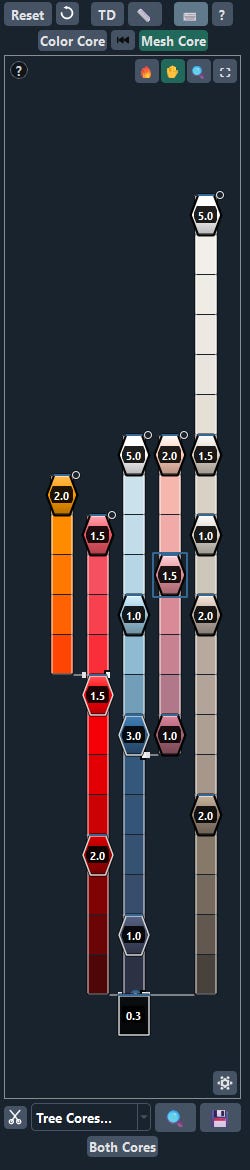
ColorDrop currently only works in Color Match mode. And I highly recommend the new OKLab CM method. You start on the Mesh Core (it’s not possibly to add new layers or branches on the Color Core) and you simply drag the image colors onto the main core or onto one of any of the branch points that show up when you are dragging a filament or image color. Dropping on a branch point adds a new branch and you can drag the slider up to extend the branch. Dropping on the top extends the branch it is on and dropping in a core adds the color there as it does today.
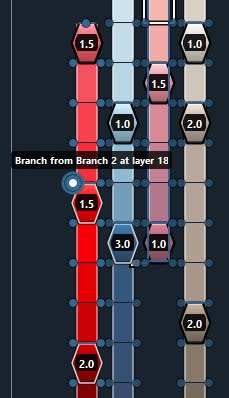
Sliders can no longer exist on the same layer. Your moving slider will hop over an active in-place slider including at the top of a branch. If you’d rather push the other slider up, holding shift while you drag the slider will do that. Disabled sliders will move themselves out of the way as you drag through (and go back where they were if you don’t stop there). You can invert or delete a branch by clicking on the circle in the top right corner of any branch.
A heatmap view shows you how much of your core is actually being used for an image.
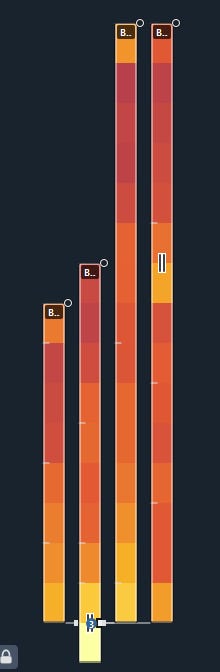
Don’t get overwhelmed by this next core - the point here is the limitations on the tree are extremely generous.
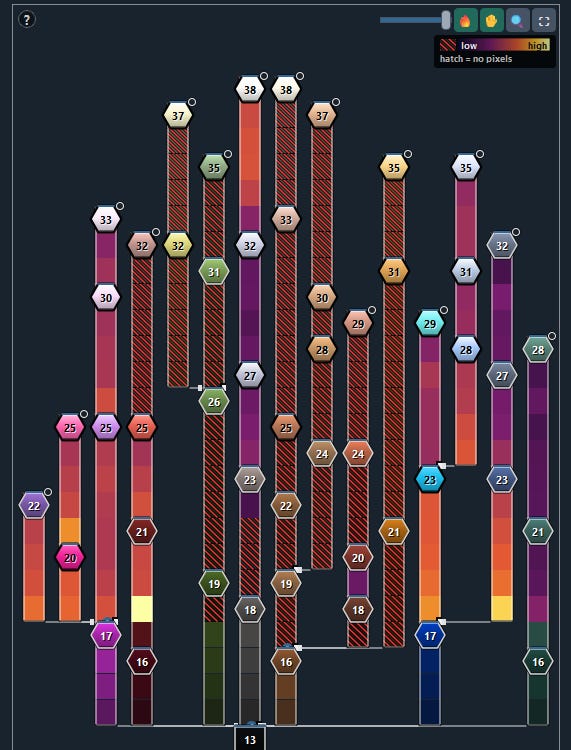
A prune control allows easily removing the bulk of the unused sections automatically. This, along with the ability to save and load trees you’ve used before, allows you to reuse a tree and prune away sections that don’t apply to your new image. (This is obviously an extreme example and I don’t recommend printing this actual tree)
In the first of what will be more in HueForge - ColorDrop comes with a build in tutorial (modeled after work in ColorSmith - I am learning how to do this so it’s maybe a little rough but it’s there).

Right now it’s 12 entries giving you the lay of the land in ColorDrop and what the major functions and buttons do.
Let’s go back to the tree view. What does each of these branches represent? It represents the start of another filament blending path at that layer. It doesn’t necessarily mean a new filament.
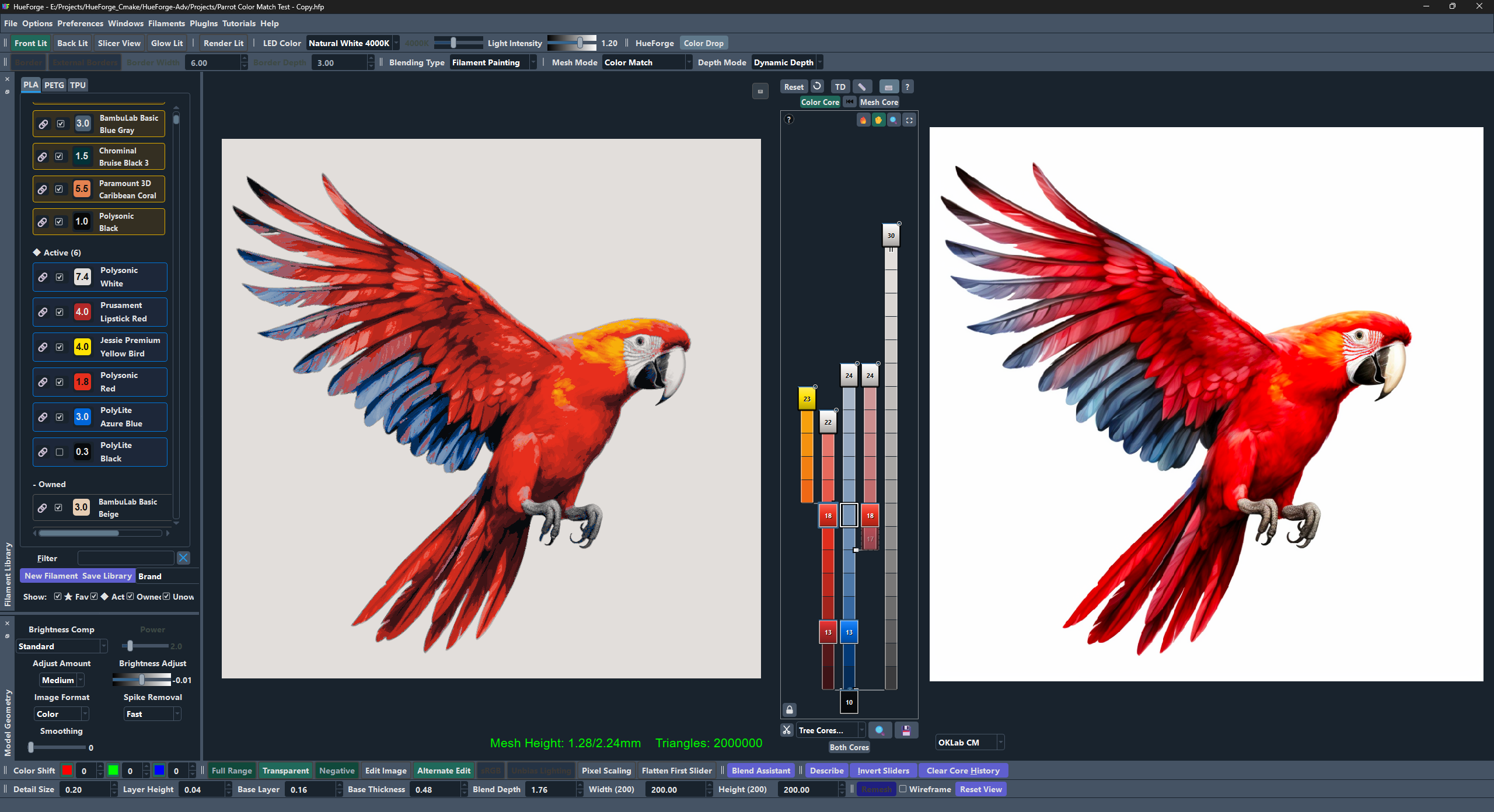
As you can see from the Active Filaments, this only required 6 unique Filaments.
Plus, many of your colors are isolated on branches now, so changing one color won’t modify other colors making color replacement so much easier. Don’t like the colors of the source image? Or don’t have the right TD in the original shade? Switch to one you do have. Previously this would potentially screw up the blending of layers above the changed filament. Now it’s cleanly separated. Here is a really simple example to show what I mean.


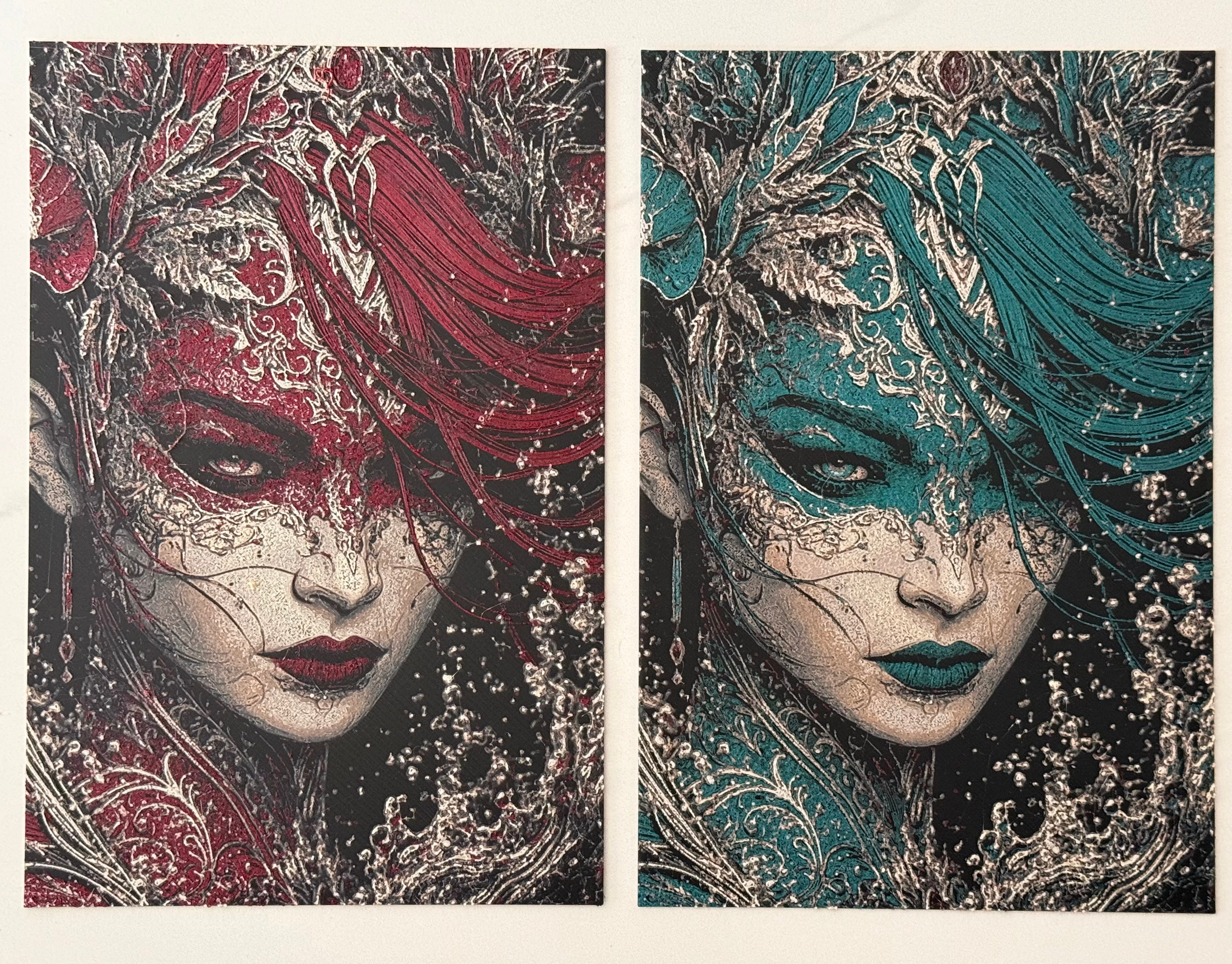
It also allows multi-color lithophanes without running multi-part prints like the stained-glass method
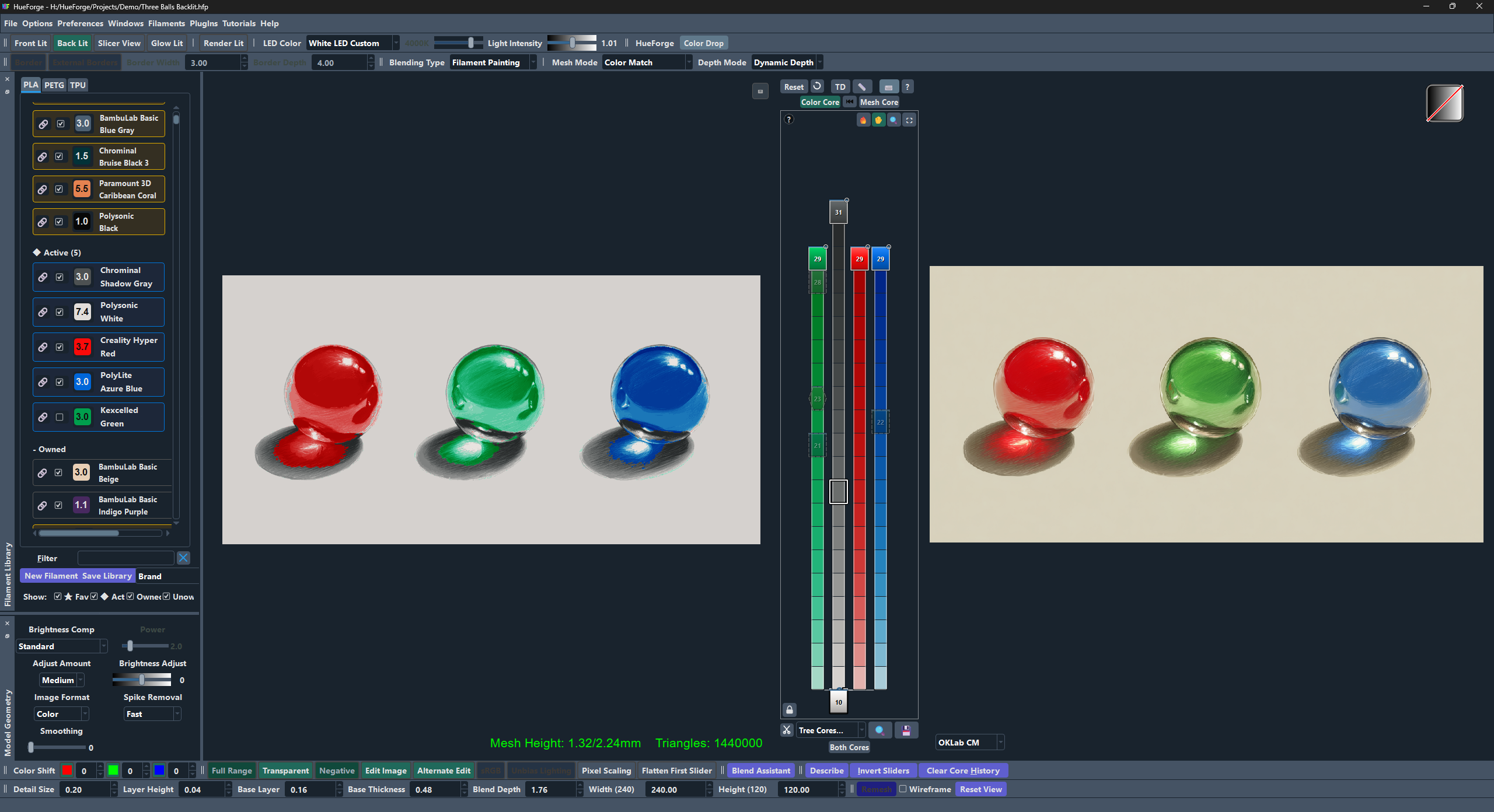
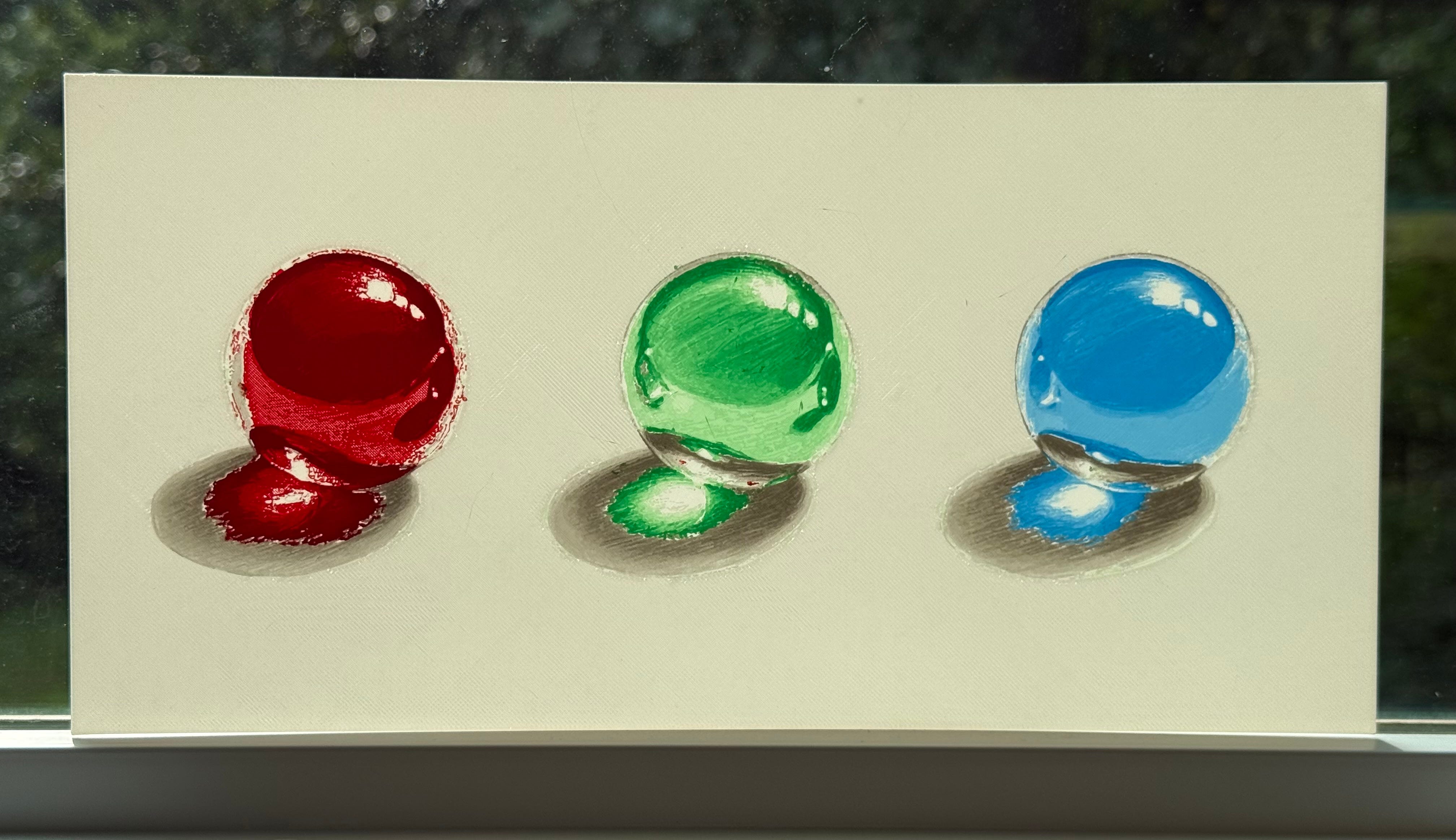
This is as big as Color Match was. Maybe bigger
I don’t use regular HueForge mode anymore. I spend all my time in ColorDrop mode, and not just because I’m testing it. This is very much the way I operated after creating Color Match. I stopped using Color Pop and Color Aware altogether - modes I had used regularly up until then (Color Aware specifically). I feel the constraints placed on my work when I use any other mode.
But I’m fortunate enough to have 2 tool-changers (no INDX though. And I’d love to have a 8 color tool-changer for this). I also have 8-12 colors available on my other printers through AMS or CFS units (and way too much filament), so I can use this mode to expand what I’m able to print using HueForge. It does increase the print time and waste as you add more branches and swaps per layer. The old ColorDrop benefits are still there for the simple nestings we were forced to do before. But I find it hard to force myself to just perform simple nestings anymore. I’m always making multiple branches to get just the right shade - though of course this also means I’m spending more time chasing the ideal image when a very good version is sitting in front of me. A risk whenever the ability to produce a better result is available.
Slicing also takes a lot longer with this method (though PrusaSlicer is faster than OrcaSlicer by quite a lot, so it’s possible there is a setting tweak I’m missing), but the print results are often worth it.
When will this be out?
I don’t know quite yet. This new-style of plugin, especially one that builds it’s own meshes and adjust predictions is a little tricky to integrate with all of the other systems. I do have it working with the 3MF Export Plugin (though I had to fix a filament color bug just yesterday) and it appears to now work with HugeForge and FlatForge but I haven’t printed any test prints using them in combination yet. Basically plugin interactions are still under testing.
There are also still some issues in the way the meshes are exported (small gaps or vees between neighboring meshes) and display issues that need to be sorted through. And of course print tests to prove it doesn’t just work on screen.
I’m guessing that it will be out before Halloween and possibly quite a bit sooner than that depending on how the next week or two of work go. I’m also trying to make sure that HueForge v0.9.4.x is fully compatible with ColorDrop 2.0 so no users will be required to pay for updates to use it.
Right now the internal workflow is easy control and the predictions are proving to be accurate. Unlike the current version, the main HueForge display doesn’t lie to you and updating ColorDrop predictions feels exactly as responsive as updates in any other mode if your GPU is relatively modern. I have run into issues on really old Intel hardware (HD 620 in particular) that might or might not be something that can be solved. ColorDrop 2.0 might require newer hardware to run than base HueForge or ColorDrop 1.x.
So are you just done updating HueForge?
No, not at all. HueForge has a massive update coming with exact SVG tracing as well as a couple of new modes that integrate particularly well with ColorSmith. After that it’s going to be a full push for beginner mode and and much stronger new user experience as well as a public release of the Plugin API (the 0.9.4.2 release became backwards compatible with older Plugin APIs so it reduces the requirement that the API be fully finalized).
Public Plugin API
The plan is to release the Public Plugin API by the end of the year. It will be a public GitHub repo with a permissive license. I don’t plan to require plugins to be released on my store either paid or free. If you do want them released on the store, I will take a small cut in exchange for the exposure, delivery, and first-line support, but you will always be able to handle all of that on your own and give plugins away or sell them on your own.
What are your thoughts?
I’m sure some of you are thinking this should be part of HueForge - but it violates the first rule - multiple swaps per layer. This will remain part of ColorDrop. I consider this ColorDrop 2.0. The old functionality will remain, but like Color Aware, I don’t really expect many people to use it. All owners of ColorDrop will get this upgrade for free, first party plugins get permanent maintenance updates (though no guarantee they will work with older versions of HueForge) and HueForge 0.9.4.2+ works with it as is. You will not need to get HueForge 0.9.5 to use ColorDrop 2.0.
I feel like this is an important capabilities milestone for HueForge prints, but I never want to ignore how awesome a simple, Standard Mode HueForge print can be. Some of my favorite prints were made in standard mode with minimal swaps. In the end, I don’t want HueForge to be gated behind INDX/AMS or Tool-changers only. Even if it IS the year of the Tool-changer.
Gallery